Google Maps GPX File Guide: Convert and Navigate Routes — Routelink
Google Maps GPX File. Learn how to create, convert, and use GPX files with Google Maps. Step-by-step guide for exporting KML, importing routes, and navigating
14 October 2026 · Routelink Team
Google Maps GPX File Guide: Convert and Navigate Routes
Google Maps GPX File. Learn how to create, convert, and use GPX files with Google Maps. Step-by-step guide for exporting KML, importing routes, and navigating
A GPX file won’t make Google Maps follow your exact route with turn-by-turn navigation, and GPX 1.0 first appeared in 2002 while GPX 1.1 arrived on August 9, 2004. What Google Maps can do is import the file for viewing in My Maps, but that imported path usually stays a static line, not an active driving route.
That’s the trap most operators run into. You build a careful delivery path, hand it to a driver or device, and the map draws something that looks right until the actual navigation app chooses a different road, skips an access lane, or reorders the trip in a way that breaks the plan.
Table of Contents
- Understanding What Google Maps Can Do with GPX Files
- Creating and Exporting GPX Files from Google Maps
- Importing GPX Files and Understanding Navigation Limitations
- Converting KML to GPX for GPS Device Compatibility
- Building a Practical Route Transfer Workflow
Understanding What Google Maps Can Do with GPX Files
A google maps gpx file is useful only if you know what Google Maps is doing with it. GPX is an open, vendor-neutral XML format built around waypoints, routes, and tracks. That matters because a planned route and a recorded GPS trail can both use the same .gpx extension while serving different jobs. The file may import cleanly and still miss the real-world result you need.

Google My Maps accepts GPX imports, and the import workflow is built around location data such as latitude and longitude, addresses, place names, or WKT geometry. It also caps imports at 2,000 rows (Google My Maps import help). In practice, that gives you three possible outcomes.
- Display a track. The imported path can show up as a line on the map, which is useful for review and sharing.
- Extract waypoints. Individual stops can be used for planning, reminders, or handoff to another app.
- Get turn-by-turn navigation. Many workflows fail here, because Google Maps may recalculate the trip instead of following the original GPX sequence.
A GPX line that looks right on screen can still fall apart at a gate, a private road, a site entrance, or any access point where the route order matters more than the visual shape. In delivery work, that is the difference between a reference map and a route a driver can actually follow.
For route planning with multiple stops, a separate workflow is often cleaner, and a practical starting point is this guide to free route planning software for multiple stops.
Creating and Exporting GPX Files from Google Maps
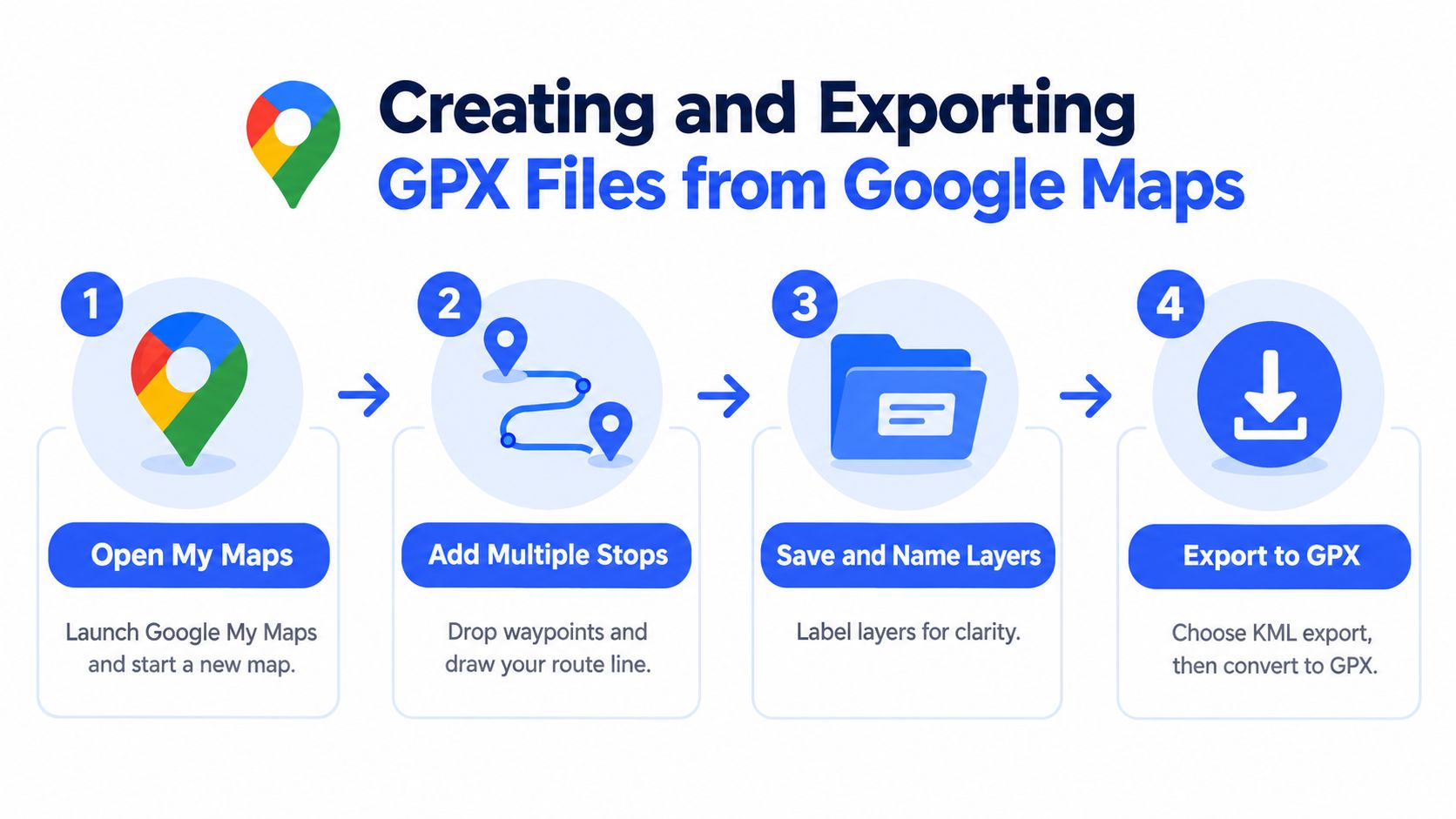
The cleanest way to move a route out of Google Maps is to build it in My Maps, not in the standard consumer navigation flow. My Maps lets you collect stops, name layers, and preserve the geometry as a file you can export, then convert if needed. For a delivery team, that’s usually the difference between a route sketch and something another tool can ingest.
Build the route in a way that survives export
Start with a new map in Google My Maps, then add stops in the same order the vehicle should visit them. Don’t treat this like a saved list of places, because independent places are not the same thing as a route. If you want a list of candidates first, keep it separate from the actual route layer.
A sensible workflow is simple:
- Open My Maps. Launch a new map and create one layer for one run.
- Add stops in sequence. Drop points in the order the route should follow.
- Name the layer clearly. Use a date, depot, or customer group so the file makes sense later.
- Export the map data. My Maps exports to KML, which you then convert to GPX.
That export step matters because GPX and KML don’t describe identical things in the same way. KML is often the more natural storage format for map placemarks inside Google’s ecosystem, while GPX is better suited to devices and apps that expect navigation data.
Verify before you hand it off
Before conversion, check the stop order and make sure the coordinates match the intended road side or entrance side. That sounds obvious, but it’s where route handoffs fail most often. If a pin lands on the wrong side of a gated site or warehouse yard, the exported file will preserve that mistake.
A good habit is to keep the original Google My Maps layer untouched and work from a copy. That way, if a driver reports a bad transfer, you can trace the error back to the source geometry instead of guessing where the route broke.
Importing GPX Files and Understanding Navigation Limitations
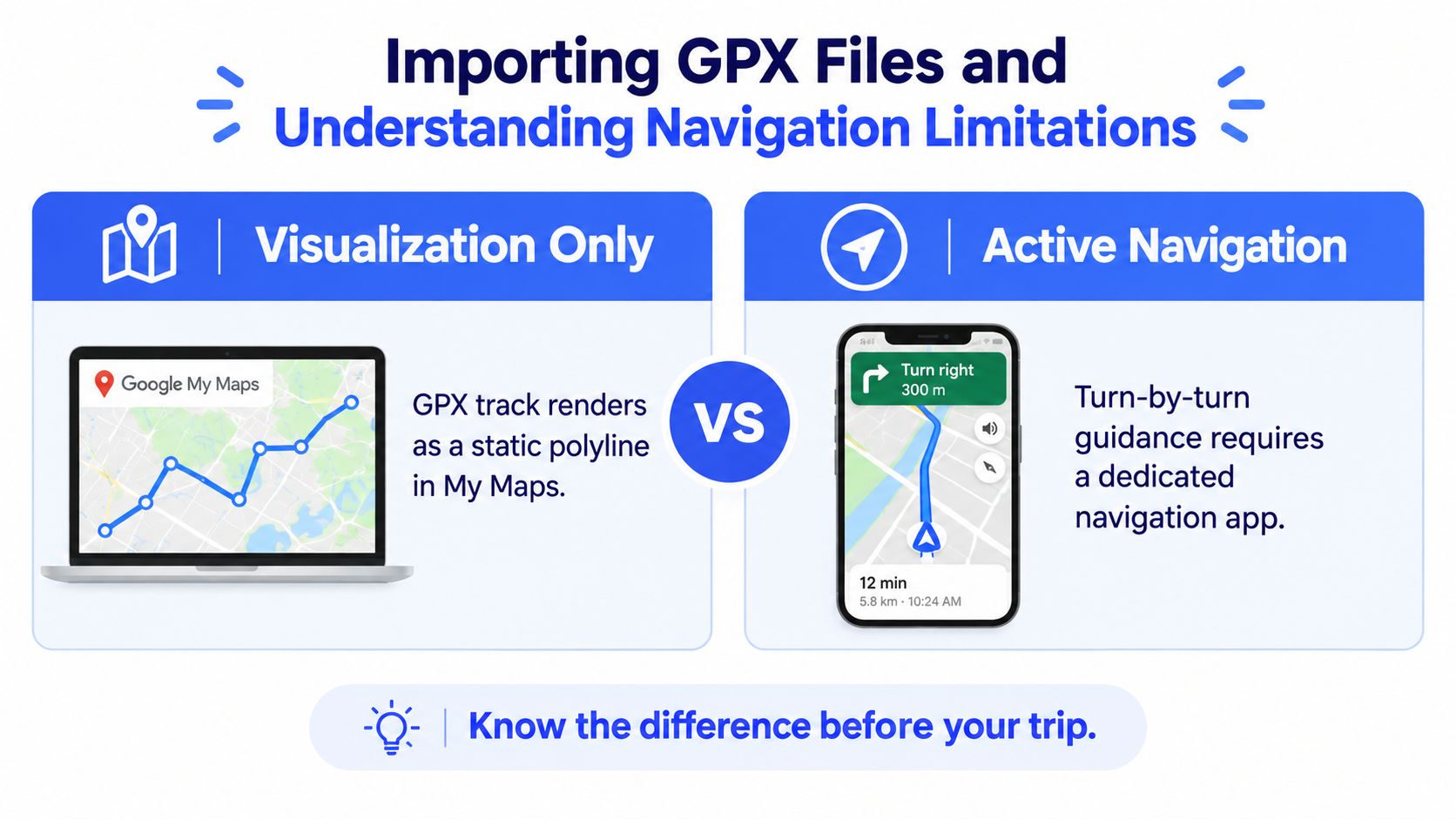
A GPX import can look successful and still fail in the field. The file may open, the line may appear on the map, and the route may still be unusable for a driver who needs turn-by-turn guidance. Google My Maps imports location data, and imported GPX tracks are treated as display data, not as a guaranteed driving route (Google My Maps help).
Visualization is not navigation
In practice, the import usually gives you one of two useful outputs. You may see the track drawn on the map, which helps with route review, service planning, or a quick check of where the path runs. You may also get waypoint data that can help with stop review or later reordering.
What it does not reliably give you is a driver-ready route. Open the same file in Google Maps mobile and confirm whether it offers Directions or only a preview view. If the app recalculates between points, skips a private road, or changes the stop order, the import has worked technically but not operationally.
That gap matters on real routes. A depot stop, a customer entrance, or a restricted access point can sit on the wrong side of a road, and the map line will not correct it for you. Test one private-road waypoint before anyone relies on the file. If the route survives that check, it is closer to being usable. If it does not, treat the GPX as a reference file and rebuild the trip in a tool that respects the road sequence you need.
The practical checklist is simple. Import the GPX into My Maps, verify the layer order, open it in Google Maps mobile, and confirm whether the file behaves like a navigable route or just a visual track. That small check saves a lot of false confidence at dispatch time.
Converting KML to GPX for GPS Device Compatibility
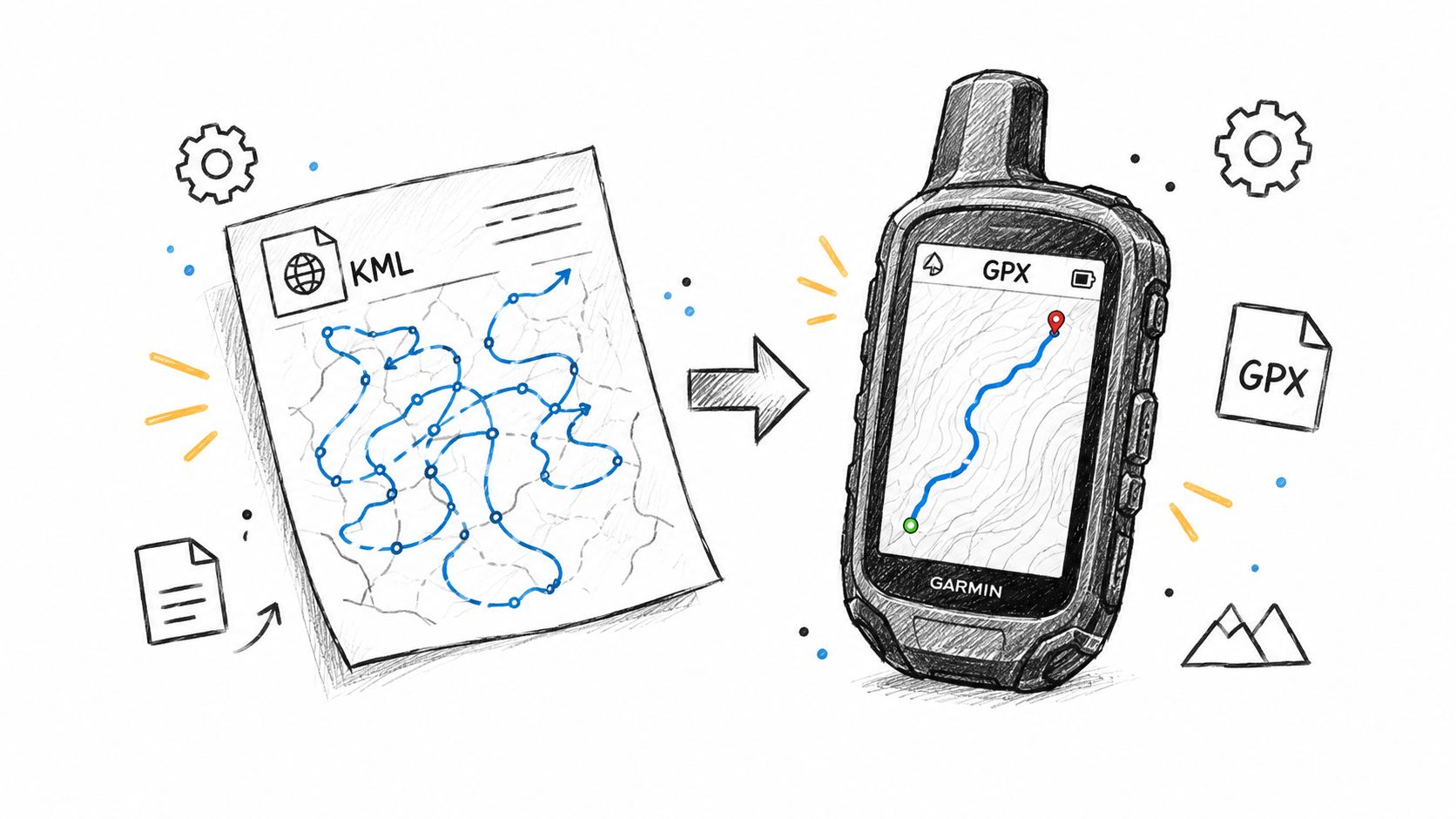
Once you have a KML export from Google Maps, conversion to GPX is usually straightforward, but the tool choice matters. Simple files with a few stops can go through a free online converter, while larger operational routes are safer in desktop software where you can inspect the result before it reaches a device. For teams that share location files across different tools, a solid reference point is the premium work trailer locations KML collection from ANTS Trailers, which shows how practical map data often starts in KML before it needs another format.
Pick the tool based on complexity
A free online converter works when the route is simple and you just need a usable GPX file quickly. Desktop tools are better when you need to preserve more context, check the file structure, or troubleshoot edge cases like missing points and odd geometry. The right choice depends on whether you’re converting a handful of waypoints or a route that must stay intact across handoff.
If you’re planning routes inside a broader workflow, a dedicated route planner is often easier to manage than patching files together later.
Watch for common conversion problems
Elevation data can disappear during conversion if the tool simplifies the file too aggressively. Coordinate issues can also appear if a converter interprets geometry in a way the target device doesn’t expect. When that happens, the map may still open, but the path won’t match the original plan closely enough for field use.
After conversion, inspect the output file in a plain-text editor or a validator if your workflow allows it. You want to confirm the GPX contains the elements your device expects, whether that’s waypoints, routes, or tracks. A file that opens is not automatically a file that will guide you correctly.
For teams that exchange location data between phones, tablets, and GPS units, a clean file is only half the job. The other half is knowing who will open it, on what device, and whether that device treats the file as a route, a track, or a set of points.
Building a Practical Route Transfer Workflow
A route transfer process works best when it stays plain and predictable. Plan the route once, export it once, check the file once, then hand it off to the driver or GPS device. That discipline matters because the same .gpx extension can hold a track, a route, or a set of waypoints, and each one behaves differently in another system.
For delivery work, start with the operating need, not the map view. If the vehicle must visit customers in a fixed order, build that order into the source route and keep each stop easy to identify. If you only need to share a list of places, waypoints are usually the safer output.
A practical comparison keeps the handoff honest:
| Outcome Type | What You Get | Best For |
|---|---|---|
| Track display | A visible line on the map | Reviewing a path or sharing the shape of a route |
| Waypoint import | Individual saved locations | Stop planning, favorites, and location handoffs |
| Navigation route | Turn-by-turn guidance | Driver directions when the app supports route following |
Google Maps GPX imports often create a useful file for review, but they do not automatically become an active turn-by-turn route inside Google Maps. That gap is what catches teams out. A file can open cleanly and still fail at the exact moment a driver expects live navigation.
Check the file before anyone depends on it
A reliable validation pass should answer three questions. Does the file contain the right stops in the right order. Does the receiving app read it the way you expect. Does the route still match the road network the vehicle can use. If any answer is unclear, fix the source file before dispatch.
For teams moving data between phone ecosystems, even sharing the route link can create friction. A useful reference for mixed-device workflows is this guide to safe methods to share your location, because the same handoff problems show up whether you are sending a live location or a route file.
Field rule: if the driver cannot follow the path without improvising, the file is not ready yet.
When the transfer has to support recurring deliveries, do not rebuild everything from scratch each time. Keep a master version, export a fresh file for the day’s run, and compare the imported result against the intended stops before dispatch. For recurring operations, use a dedicated delivery route planner to keep the master route and daily exports in sync. That is the most dependable way to avoid surprise detours, especially when different apps interpret the same GPX differently.
For route-heavy operations, Routelink helps teams plan stops, organize sequences, and hand drivers a cleaner workflow without last-minute file conversion. If you want a more controlled way to manage delivery routes from planning through execution, use Routelink as the working base for the route.